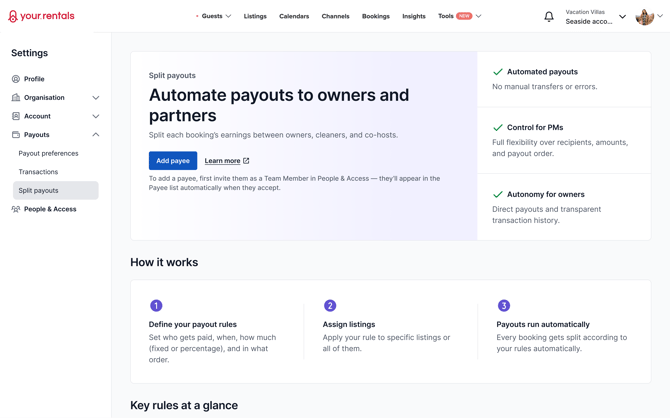
Split Payouts lets Property Managers automatically distribute booking earnings to multiple payees — such as owners, cleaners, and co-hosts — directly from Your.Rentals.
Instead of receiving one payout and transferring money manually, Split Payouts pays each payee according to your rules.
Why use Split Payouts
Many Property Managers manually calculate and transfer payouts to owners and collaborators for every booking — a process that’s time-consuming, prone to errors, and creates dependencies for owners and partners who have to wait for manual transfers.
Split Payouts removes this manual work by helping you:
- Automate who gets paid and how much
- Define payout order and payout timing
- Give payees visibility into their transactions
- Keep a clear audit trail in reporting
Important: With Split Payouts, you define the payout rules based on your agreements with collaborators. You remain responsible for ensuring the rules match your contracts.
How money flows: before vs. after
Before Split Payouts
- Booking is paid to Your.Rentals
- Your.Rentals pays the Property Manager
- Property Manager manually pays owners/collaborators
With Split Payouts
- Booking is paid to Your.Rentals
- Your.Rentals pays all payees automatically based on your rule
Important rules before setup
General payout rules
- Payouts run top-to-bottom based on the order in your payout rule.
- If funds run out, later payees may receive partial or no payout.
- By default, the account owner is paid last.
- Any remaining funds, extras, and adjustments are paid to the account owner.
- The account owner can be added as a payee and placed anywhere in the order.
Payout rule logic
- A booking payout can be split using:
- Nightly rate, and/or
- Cleaning fee
- Shares can be configured as:
- Percentage, or
- Fixed amount
- Percentage-based splits can be calculated from:
- Guest payment amount (gross), or
- Payout amount (net)
- Cleaning fee rules:
- If using Fixed amount, the cleaning fee can go to one payee.
- If using Percentage, the cleaning fee can be split between multiple payees.
Terminology
|
Term |
Meaning |
|
Collaborator |
Any person added under People & Access (team member of the PM). |
|
Payee |
A collaborator added to a Split Payout rule. |
|
Payout basis |
Which part of the booking is used (nightly rate or cleaning fee). |
|
Payout type |
Percentage or fixed amount. |
|
Calculated from |
Used when percentage is selected: gross (guest payment) or net (payout amount). |
|
Payout date |
When the payee gets paid (advance payout / after check-in / after check-out). |
|
Payout order |
The priority sequence payees are paid in (top-to-bottom). |
Requirements to use Split Payouts
Split Payouts is available only if your account meets these requirements:
Account requirements
- Account currency is EUR
- Account service fee is ≥ 6%
Listing requirements
- The listing has 2 of the top 3 channels connected:
Airbnb, Booking.com, Expedia
Where to find Split Payouts
To access Split Payouts, go to Settings → Payouts → Split Payouts or click here.
If you don’t have any eligible accounts, Split Payouts can’t be used yet.
You must have at least one eligible account that meets the requirements above.
Adding Payees (Collaborators)
If you have an account, but no active collaborators, you’ll need to invite at least one collaborator first. They will show as Payees once you start setting up a Payout rule.
- Click Add payee. You’ll be taken to People & Access.
- Invite the person you want to pay.
- Wait for them to accept the invitation.
- Return to Split Payouts to continue setting up your payout rule.
Once a collaborator has accepted an invitation, you can:
- Create a payout rule
- Add them as payees
- Assign the rule to listings
If you’ve already added collaborators
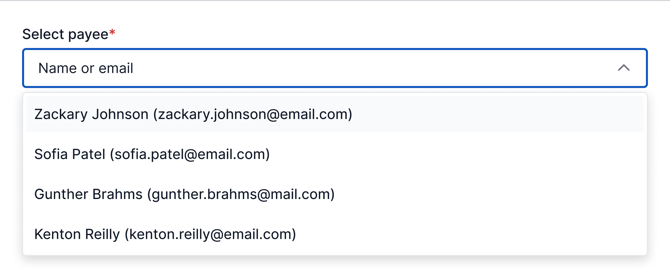
If you’ve added collaborators before, they’ll later appear as Payees in the dropdown as soon as you click Create new payout rule:
Adding a payout method as a Payee
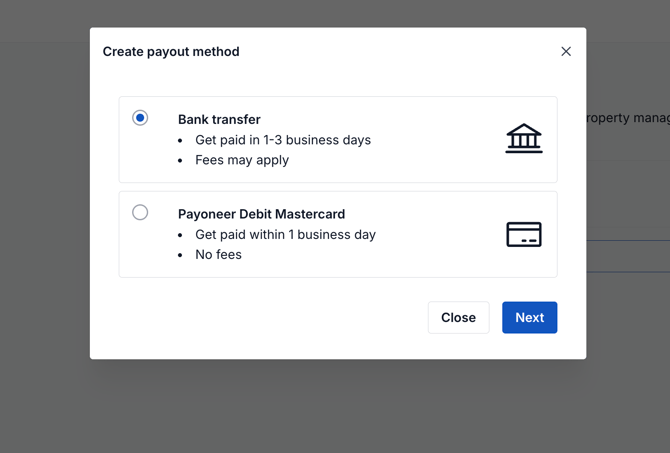
To receive Split Payouts, each collaborator (Payee) must add a payout method in their Collaborator account. Your collaborator needs to:
Creating a Split Payout rule
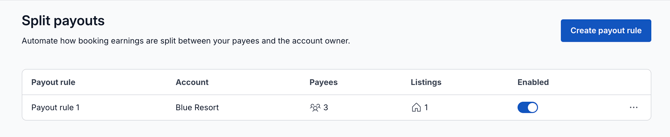
Click on Create payout rule in the top right corner:
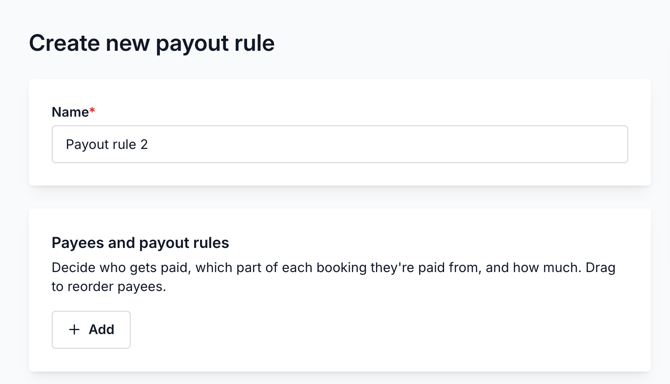
Step 1: Name your payout rule
Give the rule a recognisable name (for your reference).
Default names are created automatically as: Payout rule (1), Payout rule (2), etc.
Step 2: Select payees and define payout order
Add payees from the list of:
- Active collaborators
- The account owner (yourself)
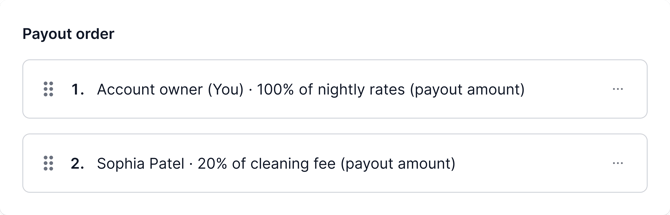
Payees are processed top-to-bottom in the order shown in the rule. You can reorder payees by dragging the drag handle on the left:
-
Place a payee earlier when they should be paid first or when you want to prioritise a payout. This can be important if the available funds cannot cover all payees.
-
Place a payee later when their payout is lower priority or should be paid after others. If there is a shortfall, payees further down the list may receive partial or no payout.
Step 3: Define payout rules
For each payee, you’ll need to define payout basis, payout type, and payout date:
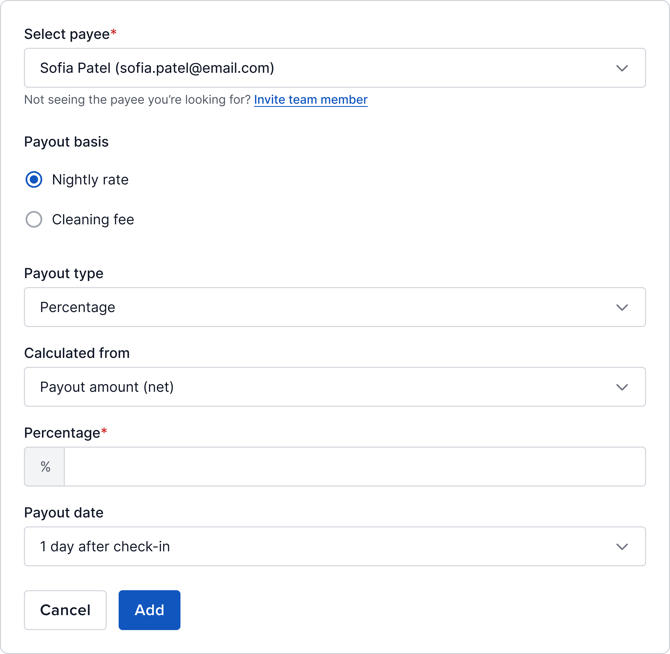
Choose Payout basis: Nightly rate or Cleaning fee
This decides which part of the booking a payee is paid from.
-
Select Nightly rate when the payee should receive a share of the accommodation revenue. This is typically used for owner agreements (for example, an owner receives 80–90% of the nightly earnings), co-host commissions, or agency revenue shares.
-
Select Cleaning fee when the payout should come specifically from the cleaning fee. This is usually used to pay cleaners, linen services, or other per-stay service providers. If you want the full cleaning fee to go to a cleaner, assign the cleaning fee to them; if only part of the cleaning fee should be distributed, you can allocate it using percentage-based rules.
Important to know: Any funds remaining after all payees are paid will go to the account owner. Extras and manual adjustments always go to the account owner.
Choose Payout type: Percentage or Fixed amount
This determines whether a payee gets a share that scales with the booking value, or a consistent amount per booking.
-
Select Percentage when the payee’s payout should scale with the booking value. For example, an owner gets 85% of the nightly rate, or a co-host receives 10% of the booking revenue.
-
Select Fixed amount when the payee should receive the same amount per booking regardless of booking size. For example, a cleaner receives €60 per booking, or a maintenance partner receives €15 per stay.
Choose Payout amount: Guest payment amount (gross) or Payout amount (net)
This setting applies only when Percentage is selected. It defines which amount your percentage is calculated from.
-
Choose Guest payment amount (gross) when your agreement is based on the booking’s total value before deductions. For example, the owner receives 80% of what the guest paid for the stay.
-
Choose Payout amount (net) when your agreement is based on what you receive after platform fees. For example, the owner receives 80% of your net payout.
A simple rule of thumb is: gross is what the guest paid, net is what you receive after fees.
Choose Payout date
This determines when the payee becomes eligible to receive their payout.
-
Choose Advance payout (only available if Advance payout is enabled on the account) when you want payees to receive funds as soon as the booking becomes non-refundable. This is often used when owners prefer earlier access to earnings or when early payouts are part of your offering.
-
Choose 1 day after check-in when you want payouts to happen after the guest has arrived and the stay has started.
-
Choose 1 day after check-out when you want to wait until the stay is completed, which can reduce risk from booking changes and is often preferred for service-related payouts like the cleaning fee, since cleaning is typically done after check-out.
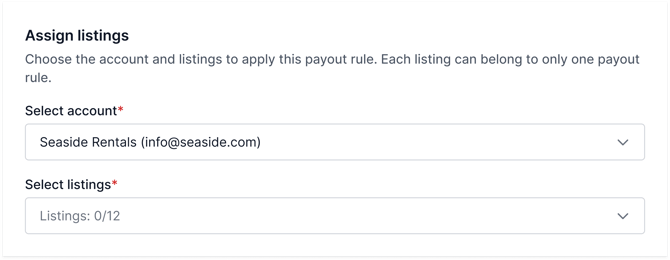
Step 4: Assign listings
Assign the payout rule to:
- Eligible listings
- From eligible accounts
Notes:
- You can leave the listing field blank if you want to assign later.
- Each listing can only belong to one payout rule at a time.
Managing payout rules
After creation, the rule appears in your payout rule list.
You can:
- View rule details
- Disable and re-enable them later
- Edit or delete them
Rules apply to upcoming payouts (both existing and future bookings).
Viewing Split Payout transactions
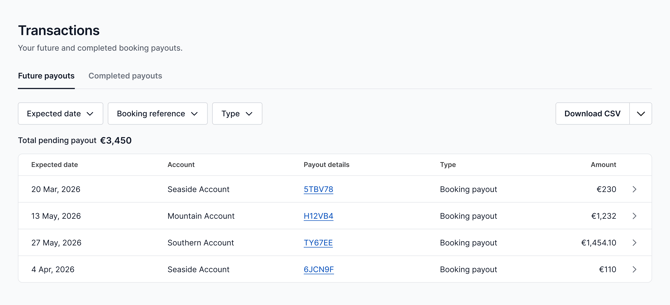
Go to Reports → Transactions.
Future payouts
See upcoming split payouts and which rule will apply.
The filters let you narrow payouts by:
- Expected date (when the payout is due)
- Account (which account it’s linked to)
- Booking reference (a specific booking ID)
- Type (e.g., booking payout or manual adjustment)
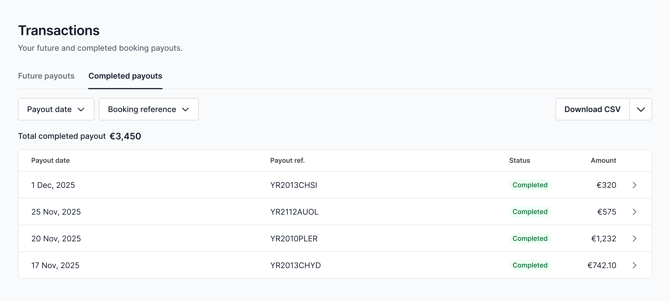
Completed payouts
See payouts that were sent and which rule was applied. You can filter by payout date, booking reference and payee:
CSV export
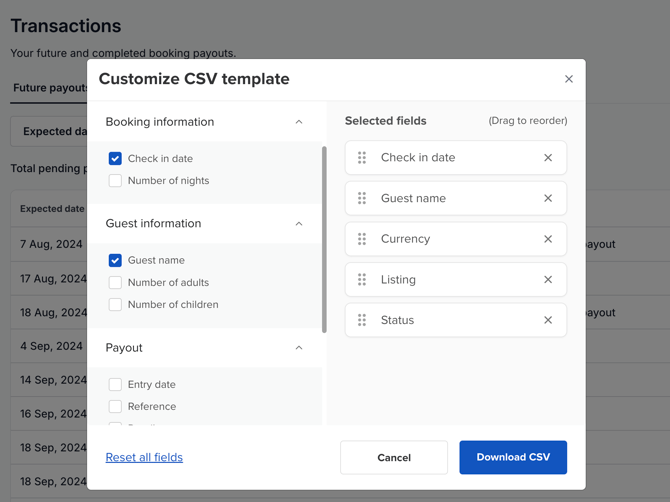
You can export Split Payout transactions for bookkeeping, reconciliation, and accounting.
The CSV report can be customised to include the details you need — such as booking information (check-in date, number of nights), guest information, and payout data (listing, currency, expected payout date, and more).
Select the information you want to include in the report, then click Download CSV.