
If you want to keep using Your.Rentals, but no longer want changes to overwrite between YR and Airbnb, you can stop the Full sync by disconnecting your Airbnb account. Your listings stay in YR - they just stop syncing with Airbnb.
Before you start
Note: Disconnecting an Airbnb account affects all listings that you imported to YR from that account, stopping the sync. Once disconnected, future changes on Airbnb (such as prices, availability, and guest communication) need to be managed in Airbnb directly, and updates you make in YR will no longer be sent to Airbnb.
Steps
-
Log in to Your.Rentals.
- Go to Channels in the top navigation bar, then select Airbnb Connections.

- For the account you want to disconnect, click ⋮, and then Disconnect.
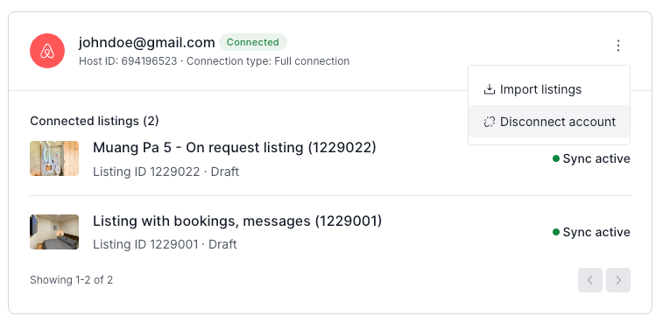
- Confirm that you want to disconnect.
What happens next
Sync to and from Airbnb stops immediately. Your existing listings data remain in YR, but they are no longer connected to Airbnb.
To keep your listings live on your other Sales Channels and prevent double bookings, your listing is paused from all Sales Channels upon disconnection. Add an iCal from Airbnb and re-publish each affected listing in YR (see “Re-publish a listing without Airbnb sync”).
Importing more Airbnb listings later
If you decide to import another listing from Airbnb in the future, you’ll need to re-establish the connection first (see “Re-connect your Airbnb account (Full connection)”). You only need to reconnect, not resume the sync for each listing.
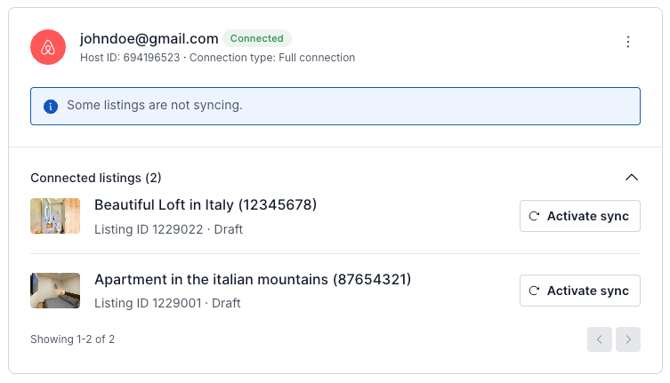
Once reconnected, keep in mind:
- The connection alone does not restart sync for listings that were previously disconnected. Those stay unsynced unless you re-sync them individually from the Connections page.
- A newly imported listing syncs with Airbnb by default.
- To stop sync on a newly imported listing, you would need to disconnect the Airbnb account again.