
How do I change an Airbnb booking after it's been confirmed?
Sometimes a Property Manager or Guest needs to modify a confirmed booking. This is called a booking alteration.
Common reasons a booking alteration may be needed include:
- A guest wants to extend or shorten their stay
- A guest wants to change to a better room, or the host wants to provide them with a free upgrade
- A guest wants to include more guests in the booking
How Booking Alterations Work in Your.Rentals
Your.Rentals supports two alteration scenarios:
- You send an alteration request to the guest, who can then accept or decline it
- The guest sends an alteration request to you, which you can accept or decline
Note: You can only alter a booking while its status is Confirmed. Once a booking moves to another status, please contact our support team for alterations.
What is a confirmed booking?
A booking is considered confirmed if it was either:
- Accepted automatically via Instant Booking, or
- A booking request that you manually Accepted
You can check the status of all bookings and booking requests on the Bookings Overview page.
Sending an Alteration Request to the Guest
- Log in to your Your.Rentals account.
- Click the Bookings menu.
- Find the booking that you would like to change.
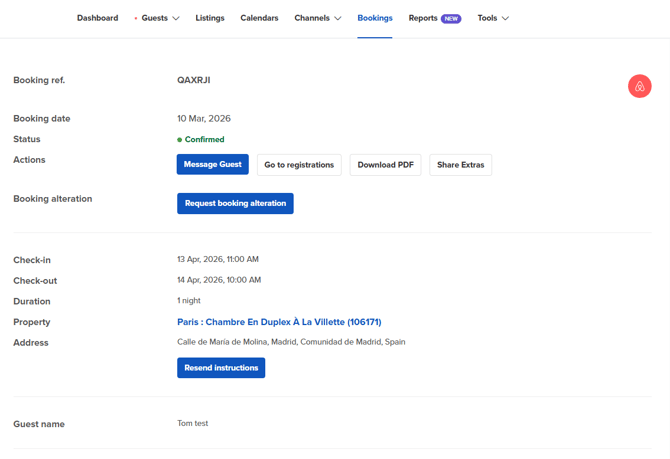
- Click the Booking details button.
- The Booking details page opens.
- Click the Request booking alteration button.
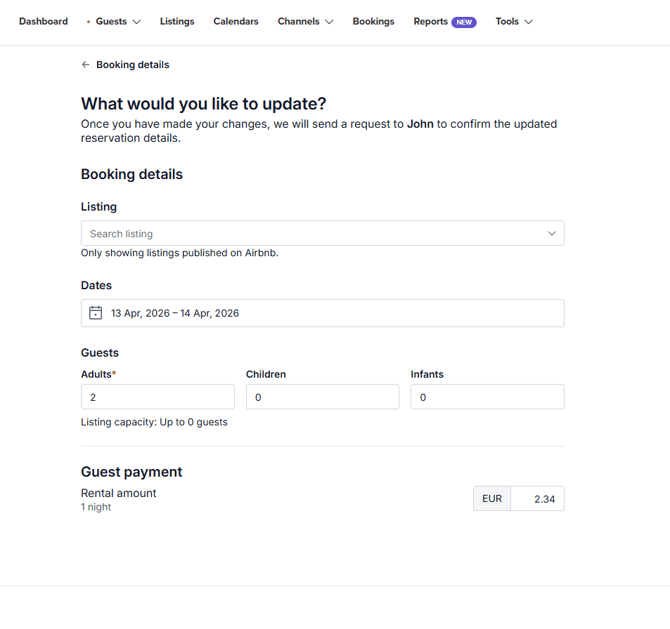
- Adjust the booking details — in particular the listing, dates, number of guests, and the rental amount.
- Note: It's always recommended to discuss these changes with the guest before sending the alteration request. You can do this using the Message guest button found in the Booking details page, which takes you directly to the conversation with that guest.
- Preview the new booking's price.
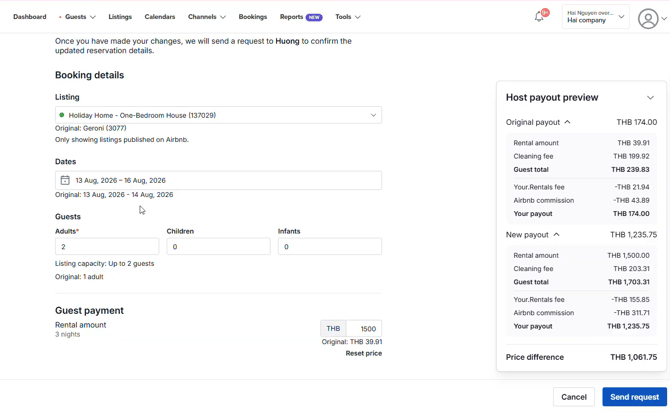
- Send the request to the guest.
- Wait for the guest's response. They will either accept or decline your request, and you will be notified of the outcome either way.
- The request will remain pending until the guest responds. If the guest does not respond, the request will automatically be cancelled at the booking's check-in date.
- Guest accepts: the booking will be updated according to the details in the alteration request.
- Guest declines: the alteration request will be cancelled, and the booking will remain unchanged.
Note: Once the request has been sent, you can still cancel it before the guest responds. You can only have one pending alteration request at a time — to send a new request, you must first cancel the existing pending one: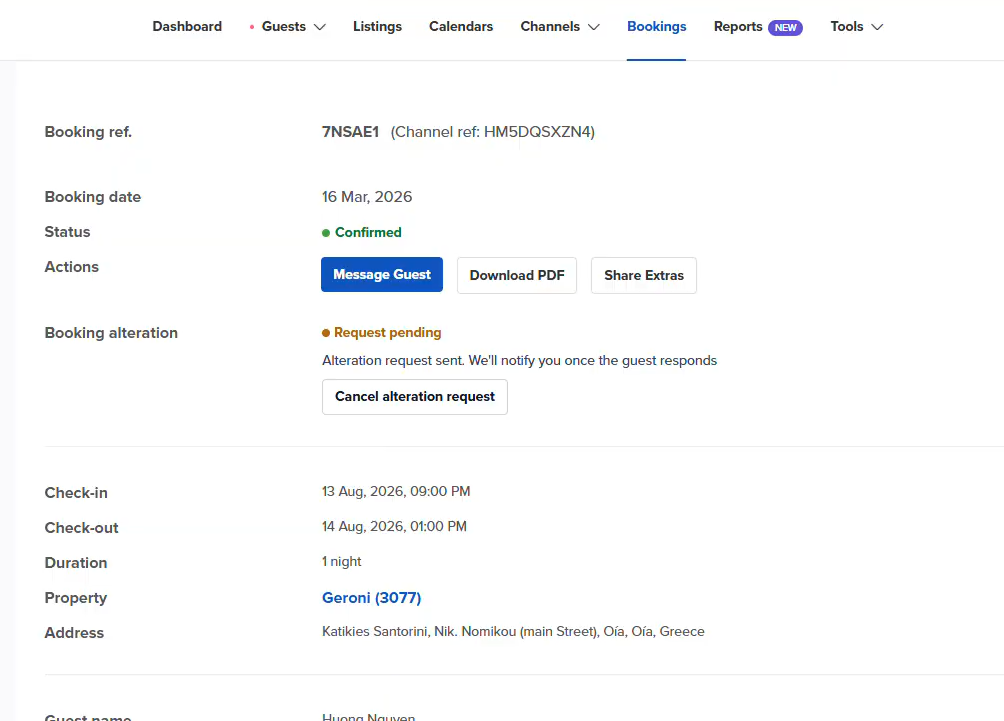
Receiving an Alteration Request from the Guest
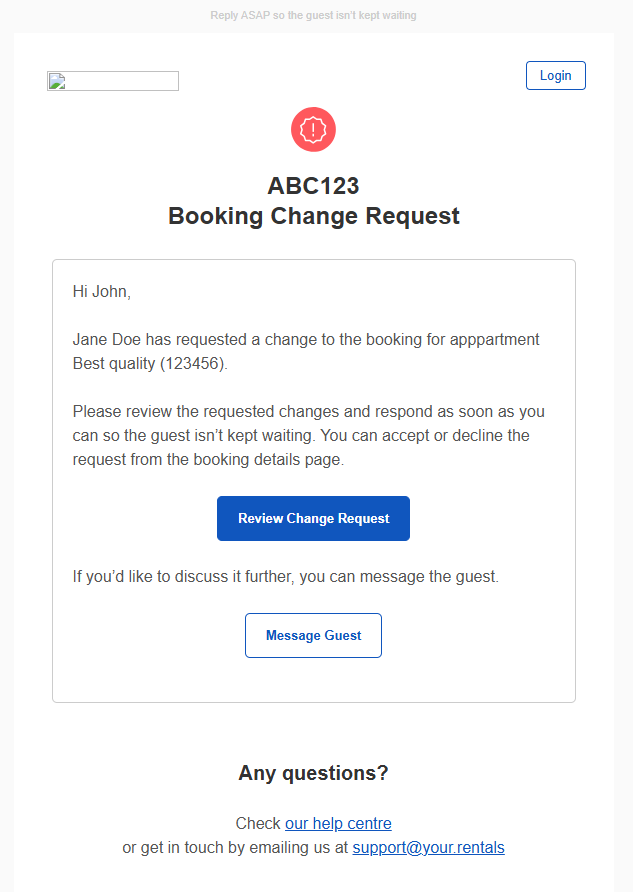
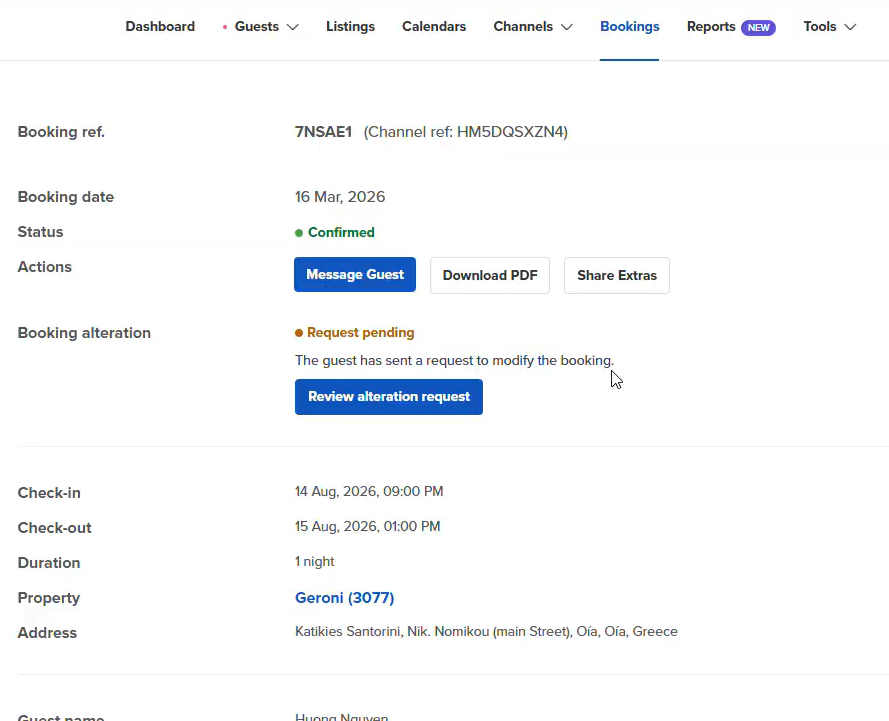
You will then land on the Booking details page. Click the Review alteration request button:
Preview the guest's requested changes, and Accept or Decline the request.
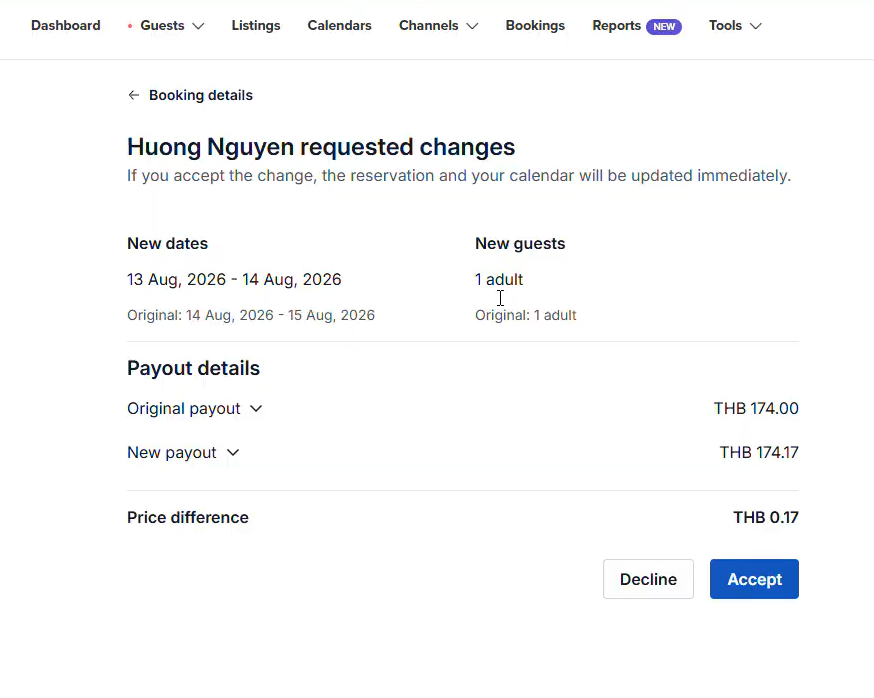
The guest will always be notified of the outcome.
- Accept: the booking will be updated according to the details in the request.
- Decline: the request will be cancelled, and the booking will remain unchanged.
If the booking details still need to be worked out after declining, you can continue the conversation with the guest using the Message guest button on the Booking details page. From there, you can also send a new alteration request once you've aligned on the changes.